Sobre nós
Durmapress specializes in designing, manufacturing, and selling various metal processing equipment, including bending machines, shears, punches, and laser cutting machines. The company was founded in 2014, with years of experience and technology accumulation. DurmaPress has become one of the well-known brands in China's metal processing machinery industry.


Contate-nos
Publicações recentes


Categorias
Siga-nos
Novo vídeo semanal
Table of Contents
Getting consistent, accurate parts from a laser cutting machine comes down to following a defined workflow — every time. Skipping a step doesn't just risk one bad part; it often creates a problem that takes several cuts to diagnose and correct.
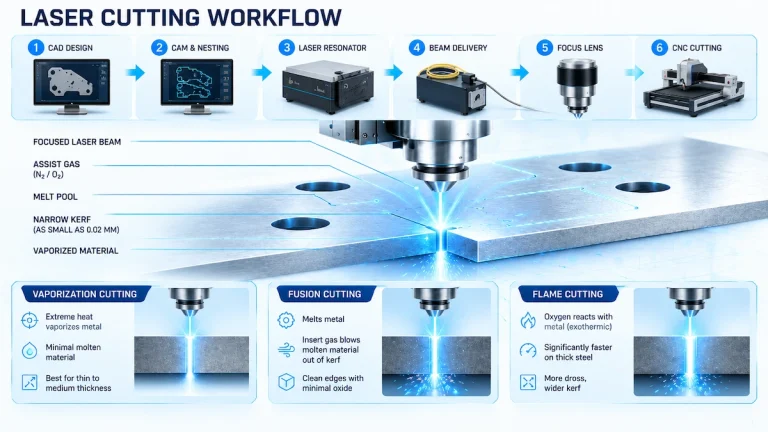
This guide covers the complete laser cutting machine operation process, from pre-start checks and machine startup through file preparation, parameter setup, trial cutting, production monitoring, and shutdown. The content focuses on industrial fiber laser cutting machines used in metal fabrication, but the underlying workflow applies broadly across laser cutting systems.
One important note before starting: every laser cutting machine has model-specific requirements for startup sequences, safety limits, material approvals, focus calibration procedures, and service actions. This guide supplements those requirements — it does not replace the manufacturer's documentation or your site's standard operating procedure.
How to Operate a Laser Cutting Machine: 10 Steps
For operators who need a quick reference before diving into the detail:
- Verify operator authorization, material compatibility, and safety systems.
- Inspect the machine; confirm cooling, extraction, and gas supply are ready.
- Start the machine in the manufacturer's prescribed sequence and complete homing.
- Prepare and import the CAD/CAM file; verify geometry, units, and layer assignments.
- Load and secure the sheet; confirm the work origin and run a frame check.
- Calibrate focus position and nozzle height using the approved procedure.
- Select the material-specific cutting recipe and verify all parameter units.
- Simulate or frame the toolpath, then perform a trial cut on matching material.
- Inspect and approve the first article before starting the production batch.
- Monitor the run, inspect finished parts, then complete shutdown and records.
Each step is covered in full below.
1. Check Machine Readiness and Laser Cutting Safety
Safety and readiness checks must happen before any material is loaded or any program is selected. These aren't preliminary formalities — they directly prevent equipment damage, fire events, and operator injuries.
Confirm the following before proceeding:
- Your authorization to operate this machine and your familiarity with the site emergency procedure
- The material is approved for this machine — grade, composition, thickness, and any coating verified against the machine's approved material list
- The enclosure, guards, and door interlocks are in place and functional
- The extraction system is running, connected, and unobstructed; exhaust or filtration is confirmed operating — motor noise alone is not enough to confirm adequate airflow
- Cooling system (where fitted) shows the required operating temperature and flow conditions
- Assist gas or compressed air is available at the required supply pressure
- Emergency stop location is confirmed before work begins
Clear and inspect the work area. Leftover offcuts, chips, and combustible debris on the cutting bed can ignite during the next job. Confirm the correct support structure is installed and free of obstructions.
Inspect operator-accessible components as permitted by your machine's manual. What's appropriate to check and how to check it varies by machine type and manufacturer — follow the prescribed inspection method for your specific system rather than applying a generic procedure. If an inspection reveals contamination, physical damage, or an abnormal indication, stop and address it. Do not attempt to compensate for an equipment fault by adjusting laser parameters.
Any unresolved fault, damaged component, or safety-system alarm is a stop-and-escalate condition. Interlocks prevent unsafe laser emission — they must never be bypassed or defeated under any circumstances.
2. Start the Machine and Complete Homing
Machine startup is a sequenced process, not simply powering everything on at once. The correct order ensures that all supporting systems — cooling, gas delivery, electrical cabinet — are fully operational before the laser source initializes.
Before initiating startup:
- Confirm no uncleared safety faults or active alarms from the previous session
- Verify that all required systems (cooling, extraction, gas supply) are available and within operating range
- Ensure the cutting area is clear and no personnel are inside the machine envelope
Follow the startup sequence in your manufacturer's documentation. Startup sequences differ between laser sources, controller types, and auxiliary system configurations. What applies to one brand or model may not apply to another. The general principle is that infrastructure systems (power, cooling, air/gas supply) come up before the laser source and control software, but the exact order and the conditions that must be met at each stage are machine-specific.
After startup, complete the homing sequence before loading any material or program:
- Homing returns all machine axes to their reference positions, synchronizing the controller's coordinate system with the machine's physical limits
- On most fiber laser systems, the Z-axis homes first to clear the cutting head from the bed before X and Y axes move
- Confirm all axes complete homing without errors before continuing
- Check the controller status display for any active alarms, axis faults, or system warnings
Do not proceed to material loading if any axis fails to home, if an alarm remains active, or if the machine does not reach its defined Ready state. Investigate the cause using the fault code and manufacturer documentation, or escalate to qualified service if the fault is not within the operator's scope to resolve.
3. Prepare the CAD/CAM File and Toolpath
A correctly prepared file won't compensate for a poor machine setup, but an incorrectly prepared file will create problems regardless of how well everything else is configured. File errors found at this stage take minutes to fix; the same errors found during cutting waste material and machine time.
Verify the basics on import:
- File format is supported by the control software (DXF and DWG are common for fiber laser controllers; confirm with your specific system)
- Document units and overall dimensions are correct — measure a known feature in the software, don't assume the import preserved the original scale
- Part count and program revision match the production requirement
- All geometry fits within the usable material area with sufficient clearance
Inspect the geometry at high zoom. The most common preparation errors are:
- Open contours — a gap in a profile that looks closed on screen but won't separate the part
- Duplicate or overlapping entities — causes the laser to run the same line twice, adding heat and burn damage
- Stray line fragments or tiny objects — triggers unexpected laser movements or pierce events
- Annotations or construction geometry assigned to an active cut layer instead of being suppressed
Assign operations to layers clearly:
| Layer | Operation |
|---|---|
| Marks / Engrave | Surface marks, labels, identification |
| Internal cuts | Holes, slots, openings |
| Outer profile | Final part perimeter |
| Special features | Tabs, bridges, partial-cut features |
Layer colors help identify groups visually, but the operation and enabled-output status assigned in the controller is what actually runs. A layer hidden in the CAD view is not automatically suppressed in the machine controller — check each layer's output state explicitly.
Run a software simulation or toolpath preview and verify the motion matches what you expect before sending the file to the machine.
3.1 Set the Toolpath for Part Stability and Efficient Motion
Cutting sequence directly affects part quality and the risk of head collisions — yet it's frequently left at default settings without review.
The standard rule: cut internal features before the outer profile. Once the external boundary is cut, the part is free and may shift. Any remaining internal cuts then run on a displaced part, producing misaligned holes and, in the worst case, a freed part tipping up and colliding with the cutting head.
Lead-ins protect finished edges by starting the pierce outside the final cut line, then traversing into the contour. Without a lead-in, the pierce mark — rougher and often slightly wider than the main cut — lands directly on the edge. Apply lead-ins on cosmetically or dimensionally critical edges, and configure the type, length, and angle to suit the material thickness and contour geometry.
Micro-joints or tabs keep parts connected to the skeleton until all cutting is complete. Use them when a part's geometry, weight, or position relative to the support structure creates a realistic risk of it tipping or shifting after being freed — particularly on thin materials and small parts with low contact area against the support. The appropriate micro-joint strategy depends on the part geometry, sheet support, and whether the machine's height sensing can reliably handle freed pieces; it isn't determined by a single dimensional rule. Your CAM software or controller documentation will have guidance for your specific setup.
3.2 Apply Kerf Compensation and Feature Rules
The kerf — the width of material the laser removes along the cut path — affects every finished dimension. Holes come out oversized; external profiles come out undersized. For parts that need to mate, assemble, or meet a tolerance, uncorrected kerf is a reliable source of rejection.
The control software's compensation function offsets the toolpath inward or outward by the kerf half-width to produce finished dimensions that match the drawing. The actual kerf width depends on the machine's laser source, power level, lens and nozzle configuration, material type and thickness, and assist gas. It must be measured on your specific machine and material — generic reference values from other machines or materials are not a reliable substitute.
Where compensation matters most:
- Holes and slots — uncompensated kerf makes them oversized; the path offsets inward
- External profiles — uncompensated kerf makes parts undersized; the path offsets outward
- Tab-and-slot or press-fit assemblies — inconsistent compensation across mating features produces loose or impossible-to-assemble joints
Validate the compensation value by measuring actual cut features on a test piece before production. A simple test with a mix of hole sizes, external profiles, and a mating slot takes a few minutes and confirms whether the configured offset produces the intended result.
Some controllers allow separate parameter settings for small holes and circles, which can cut differently from large contours due to acceleration and deceleration behavior at tight radii. Configure these separately when your material, thickness, and hole-size requirements warrant it.
4. Load the Material and Set the Job Origin
Confirm the sheet specification first. Verify that the actual sheet matches the approved material — grade, measured thickness, and surface condition. Nominal thickness from a material label is not always what arrives in production; measure at multiple points if there is any doubt, particularly for thicker plate or materials from a new batch.
Loading and securing:
- Lay the sheet flat on the correct support structure; confirm it doesn't rock or bow across unsupported spans
- Use approved hold-downs positioned outside the head's entire travel path — not just the beam spot, but the full moving assembly including the nozzle
- For remnant pieces, check that the remaining material provides adequate support and that existing cut lines don't compromise sheet stiffness under the clamping arrangement
Set the job origin. Depending on the controller, the origin may be a fixed machine coordinate, an edge-found position, or a manually set reference point. Confirm which positioning mode is active and that it corresponds to the sheet's actual position. If using edge finding, run it before setting the origin — don't assume the sheet is square to the machine axes.
Run a framing check with laser emission off. This moves the head around the outer boundary of the job without cutting, confirming that the entire cutting area falls within the usable material and that no part of the head's travel path risks a clamp or edge collision. After any change to sheet position or hold-down placement, repeat the frame check before proceeding.
5. Calibrate the Cutting Head and Set Parameters
5.1 Calibrate the Focus Position and Nozzle Height
Focus position determines where the laser beam reaches its minimum diameter. At the correct focal point, the beam delivers its highest energy density to the material. Incorrect focus spreads the beam, reduces cutting intensity, increases kerf width, and degrades edge quality — problems that more power does not reliably solve.
Before calibrating focus:
- Confirm the nozzle type, diameter, and installation state match the process requirement. The nozzle opening should be round and undamaged; a dented or partially blocked nozzle disrupts the assist gas flow pattern that helps remove melt from the cut zone. Check that the nozzle is properly seated and tightened.
- Confirm no obstructions or debris are on the sheet surface at the calibration reference point.
Calibrate focus using the procedure specified in your machine's documentation:
- Autofocus / capacitive height sensing: Position the sensor over the required reference area on the sheet surface and initiate the calibration routine. Confirm the sensor is reading the material surface — not a fixture, an opening, or the bed below the sheet.
- Manual focus: Use the gauge, spacer, or focus tool specified for your machine and adjust head height or bed position according to the manufacturer's method.
After calibration, confirm the standoff distance between the nozzle face and the material surface matches the process requirement for the material and thickness being cut. Recheck focus whenever sheet thickness, support height, or any other factor affecting the nozzle-to-material distance changes.
Verify focus through a trial cut, not only by confirming the calibration reading. Edge quality, kerf width, and cut-through consistency are the practical confirmation that focus is correct for the actual material.
5.2 How to Set Laser Cutting Parameters
With the cutting head calibrated and the sheet positioned, parameter setup follows a defined sequence — not a starting-from-scratch exercise each time.
Step-by-step parameter setup:
- Confirm the material specification: grade, measured thickness, surface condition, and any coating or film. Parameters must match the actual material being cut, not just the nominal specification.
- Load the starting recipe from the machine's parameter library. Most industrial fiber laser controllers include material- and thickness-specific recipes validated for that machine's configuration. Select the recipe that matches your material type, thickness, nozzle diameter, and assist gas. This is the correct starting point — not a generic values chart from a different machine or system.
- Confirm the key parameter settings:
- Laser power and mode
- Cutting speed
- Focus position (confirmed against calibration)
- Nozzle type and diameter
- Assist gas type and supply pressure
- Pierce settings: power, duration, and pre-pierce mode
- Any material-specific frequency or pulse settings where applicable
- Check units before entering any value. Speed expressed in mm/min entered into a field expecting mm/s will run the cut 60× slower than intended, causing burning, incomplete cuts, and wasted material. Confirm both distance and time units explicitly.
- Perform a trial cut on matching material before committing to production. Parameters from a library are a validated starting point, not a guarantee — material batches vary, and consumable condition changes over time.
- If the trial cut requires adjustment, change one variable at a time within the manufacturer's approved range. Isolate the effect of each change before making another.
The variables don't operate independently. Power, speed, focus, gas type, and gas pressure interact. Increasing power without adjusting speed adds heat throughout the cut zone; changing assist gas without reviewing pressure settings may produce a worse result. The parameter library handles this balance for common setups — adjust from that baseline rather than building from individual numbers.
Example: Setting up a fiber laser to cut stainless steel
The following illustrates the setup process for a common material. Actual parameter values depend on the specific machine, laser source power, lens and nozzle configuration, and material batch — use your machine's validated library, not these descriptions, as the source for actual numbers.
- Material: Stainless steel, confirm specific grade (e.g., 304 or 316) and measured thickness
- Starting point: Load the stainless steel recipe from the controller library for the confirmed thickness and nozzle size
- Gas selection: Nitrogen is typically used for stainless steel to produce a low-oxidation edge under suitable cutting conditions. Confirm nitrogen supply purity, pressure at the machine inlet, and that the supply meets the recipe requirement — contaminated or low-pressure nitrogen supply is a common source of oxidized edges that gets misdiagnosed as a power or speed problem
- Trial cut: Check full cut-through, edge oxidation, bottom dross, hole geometry, and part dimensions
- If adjustments are needed: Verify nozzle condition, focus calibration, and gas supply first. Only adjust parameters after confirming the setup conditions match the approved recipe
If your equipment has been tested on specific material grades and thicknesses with documented results, a machine-specific parameter reference table is far more useful than a generic industry chart. Generic power tables from unspecified machine configurations can mislead more than they help.
6. Perform a Trial Cut and Inspect the First Article
Every job — including repeat jobs on familiar material — benefits from a trial cut before committing to full production. Nozzle condition changes, material batches vary, and a program revision that hasn't been noticed can affect the result.
Use matching material from the same batch and thickness. A test cut on a different grade, alloy, or thickness doesn't validate the production setup. Use an offcut from the same sheet where possible, positioned on the same support conditions as the production run.
Test with features that represent the actual job — not just a simple square. Include:
- A small hole (the minimum hole size in the job)
- A slot or rectangular opening
- A tight external radius
- A sample of any feature that will require assembly or close-tolerance verification
A square confirms basic cut-through but won't reveal problems on tight corners, small holes, or narrow features that behave differently under the same parameters.
Inspect the trial cut before running production:
- Full separation at all edges, including corners and fine features
- Burr or dross condition on the bottom face
- Edge oxidation or discoloration compared to the expected appearance for this material and gas combination
- Part dimensions measured against the drawing, including hole diameters and slot widths
- Absence of heat distortion or warping, particularly on thin materials
If an adjustment is needed, change one variable at a time and retest on fresh material. Changing power and speed simultaneously makes it impossible to isolate which adjustment produced the result.
6.1 Approve and Record the First Article
A successful trial cut is only useful if it becomes a documented reference. Without a record, the next operator runs the same job from scratch.
Define acceptance criteria before cutting, not after. Typical criteria for a B2B production environment:
- Dimensions within the drawing's specified tolerance (determined by the part drawing and assembly requirements — not a generic industry standard)
- No through-burrs or attached dross requiring rework
- Edge oxidation acceptable for the application
- Hole quality confirmed against any functional requirements such as thread engagement or fastener clearance
- Visual appearance meets the specified standard
What to record in the job setup sheet:
- Machine ID and controller version
- Program filename and revision
- Material: grade, supplier or batch reference, measured thickness, surface condition
- Nozzle: type, diameter, installation date
- Focus calibration method and confirmed standoff
- Assist gas: type, supply pressure confirmed at machine
- All cutting parameters with units
- First-article inspection results with measurements
- Operator name and date
Keep a labeled sample of the first article with this record where practical. When quality questions arise later in the run, the first-article sample is the direct reference — memory is not.
7. Run the Production Job and Monitor Cutting
With an approved first article and a documented setup, production can begin. Active monitoring continues throughout — a validated setup establishes the starting conditions, not a guarantee for every subsequent part.
Final check before starting:
- Loaded material matches the approved specification and first-article record
- Correct program revision is selected and targeting the right machine
- All required layers are enabled; construction geometry and annotations are suppressed
- Job origin confirmed; frame check completed for this sheet
- Parameters match the first-article record exactly
- Extraction and assist gas confirmed running
During the run, watch for:
- Cutting behavior consistency — pierce quality and cut entry should look consistent with the first article. Changes in edge appearance or pierce behavior often precede a more visible quality problem
- Smoke and extraction — fume removal should be consistent; sudden changes in smoke volume indicate something has changed in the process
- Part movement — freed parts that tip or shift become collision hazards for the cutting head
- Alarms — the first alarm warrants a pause for diagnosis, not an acknowledge-and-continue response
Never leave the machine unattended during cutting, particularly with thin or combustible materials where a small process change can escalate. Remote monitoring through a connected system or camera supplements an on-site operator; it doesn't replace one.
If the job stops unexpectedly, identify the cause before restarting. Material movement? Head contact? Gas supply interruption? Program error? Restarting without diagnosis runs the risk of repeating the root cause immediately.
8. Troubleshoot Common Laser Cutting Problems
Quality defects are diagnostic information, not just reject criteria. Before adjusting any parameter, work through the relevant checks — most cutting problems are caused by setup conditions, not by the laser source itself.
Quick diagnosis reference:
| Problem | Priority Checks |
|---|---|
| Laser not cutting through | Material thickness and grade, sheet flatness, focus calibration, nozzle condition, assist gas supply, program parameters vs. first-article record |
| Excessive bottom dross | Assist gas flow and pressure, focus position, cutting speed, nozzle condition and seating |
| Oxidized edge on stainless steel | Nitrogen supply purity and pressure at machine inlet, gas delivery path, process settings |
| Inconsistent cutting quality across the sheet | Sheet flatness and support, focus calibration, nozzle condition, gas delivery, material batch consistency |
| Incorrect part dimensions | File units and scale, kerf compensation setting, program revision, job origin, material movement during cut |
Use this table to identify the priority investigation path for each symptom, then apply the detailed checks below. The table reflects common first-check directions — the underlying cause in a specific case may differ.
8.1 Incomplete Cuts or Uncut Bridges
An incomplete cut is rarely a signal to increase power. Work through this sequence first:
- Verify material. Confirm the actual thickness, grade, and that no coating or laminate is present that wasn't accounted for in the setup. A different material batch at the same nominal thickness can behave differently.
- Check sheet flatness. A bowed sheet changes the nozzle-to-material distance across the bed. The same focus calibration setting delivers different beam intensity at different positions when the sheet surface isn't flat.
- Inspect the nozzle per your machine's maintenance procedure. A damaged, offset, or partially blocked nozzle disrupts the gas flow pattern that clears melt from the cut zone.
- Check the protective lens and optical path using the inspection method specified for your machine. Contamination reduces the laser energy reaching the material. Clean or replace only as directed and with approved materials.
- Verify assist gas supply. Confirm pressure and flow at the machine, not just at the supply source. A kinked line, clogged filter, or partially closed valve causes gradual degradation that can look like a parameter issue.
- Compare active program settings against the first-article record. Verify power, speed, and all relevant parameters — including units — match exactly.
Only after confirming the setup conditions match the approved test should a parameter adjustment be considered, and only one change at a time within the manufacturer's specified limits.
8.2 Burrs, Dross, Burn Marks, or Rough Edges
Compare any edge-quality defect directly against the accepted first-article sample under consistent lighting conditions before assuming a parameter change is needed.
Common causes by symptom:
- Heavy dross on the bottom face — often insufficient assist gas pressure or flow, focus set above the material surface, or cutting speed too low for the gas type in use
- Oxidized or discolored edge on stainless steel — check nitrogen supply purity, inlet pressure at the machine, and whether the gas delivery path is maintaining the required conditions; don't increase power as a first response
- Burn marks at pierce points — pierce power, duration, or pre-pierce mode may be too aggressive for this material and thickness; also check lead-in placement
- Consistent striations or rough edge throughout — focus position is the first thing to check; also verify speed and power balance against the approved parameters
- Heat-affected zone wider than expected — check for duplicate paths in the file; a second overlapping entity runs the laser over the same edge twice, adding heat without appearing as a parameter change
8.3 Wrong Dimensions, Missing Features, or Shifted Cuts
Dimensional problems fall into two categories: file or CAM errors, and physical process errors. Identifying which type you're dealing with first saves time.
If all features are off by the same proportion: check document units, import scale, and output scaling in the controller. A millimeter file imported as inches produces a consistent proportional error across all features.
If parts are the correct size but in the wrong location: check the job origin setting and edge-finding result. Also verify the sheet didn't move between the framing check and the actual cut.
If features are missing or received the wrong operation: check layer visibility and enabled-output status in the controller. A layer active in the CAD file may be disabled in the machine job setup.
If dimensional errors are small and consistent: measure the kerf and verify whether kerf compensation is applied correctly. If the offset matches the kerf width and compensation wasn't configured or was applied incorrectly, correcting it and retesting on scrap will typically resolve the issue.
For persistent alignment issues, unresolved sensor faults, or suspected optical-path problems, stop and escalate to qualified service. Mirror alignment, beam-path adjustment, and interlock repair require authorized technical access — attempting them without authorization creates safety hazards and can cause further equipment damage.
9. Shut Down the Machine and Perform Routine Maintenance
9.1 Shut Down the Machine and Complete Post-Operation Checks
Shutdown, like startup, follows a sequence. The correct order protects the laser source, maintains cooling system integrity, and leaves the machine in a known, safe state for the next operator.
Before initiating shutdown:
- Confirm all cutting operations are complete and the machine has finished its active cycle
- Allow any required fume-clearance and cooling time before accessing the work area
- Remove completed parts and any loose material from the bed
Follow your manufacturer's shutdown sequence. The general principle is that the laser source is turned off before the cooling and extraction systems, allowing them to complete their respective run-on cycles. However, the exact sequence — which systems stop first, in what order, and what conditions to confirm at each step — is machine-specific. Applying a different machine's shutdown order can shorten laser source and chiller service life or cause system faults. Use the procedure in your documentation.
Before leaving the machine, confirm:
- Gas supply valves are in the correct state per site procedure
- Residual pressure has cleared from lines as required
- The work area, bed, and cutting head are free of slag, debris, and spatter
- Any required post-operation records are completed
9.2 Perform Routine Maintenance After Operation
Maintenance falls into three distinct categories. The specific tasks and intervals for each depend on your machine model, operating environment, and manufacturer requirements — use your maintenance schedule as the authoritative source.
| Category | What to Address |
|---|---|
| After each job | Remove offcuts, slag, and debris from the cutting bed, scrap tray, and surrounding area; check for and record any alarms, quality deviations, or process anomalies from the run |
| Routine inspection | Check nozzle condition and record replacement if worn; inspect the protective lens and clean only as directed with manufacturer-approved materials; verify gas path filters and connections; confirm extraction system operation |
| Scheduled maintenance | Cooling system fluid condition and level; lubrication of linear guides and motion components; dust extraction filter replacement; drive and transmission inspection — all per manufacturer-defined intervals |
A note on lens cleaning: using the correct optical tissue, approved solvent, and the prescribed method prevents gradual energy loss from contamination buildup. Cleaning with the wrong materials — household glass cleaner, paper towels, or compressed shop air — can scratch or contaminate the optic and cause more damage than the contamination it was meant to remove. If the lens shows damage or internal contamination beyond operator-level cleaning, report it for service assessment.
Update the job record with the final run outcome: any alarms that occurred, parameter adjustments made from the first-article baseline, consumable condition notes, and whether results remained consistent throughout.
Define your retest triggers clearly. An approved parameter record from a previous run doesn't automatically apply to the next job if any of the following have changed:
- Material batch, supplier, or measured thickness differs from the first-article record
- Nozzle has been replaced or cleaned
- Protective lens has been cleaned or replaced
- Assist gas source or supply conditions have changed
- Machine has undergone service, alignment work, or software update
- In-process quality shows drift from the first-article benchmark
If any of these conditions apply, run a new trial cut and approve a new first article before resuming production.
10. FAQ
Answer: Before loading any material, confirm the enclosure and interlocks are functional, extraction is running and unobstructed, cooling and assist gas are at required operating conditions, and the work area is clear of debris. Check the nozzle and optical path condition using the inspection method specified for your machine. Any unresolved fault or safety-system alarm must be resolved before proceeding — never bypass a protective interlock.
Answer: Follow the startup sequence in your machine's manufacturer documentation — startup procedures differ between laser sources, controller types, and auxiliary system configurations. The general principle is that support systems (cooling, extraction, gas supply) come up before the laser source initializes. After startup, complete the homing sequence to synchronize all axis positions, then confirm the machine reaches its Ready state with no active alarms before loading material or a program.
Answer: Start by loading the material-specific recipe from the machine's parameter library rather than entering values manually from a generic chart. Confirm the recipe matches your material grade, thickness, nozzle size, and assist gas type. Check that all speed and power units match the controller's expected format before entering values, then perform a trial cut on matching scrap and inspect dimensions, edge quality, and cut-through before approving the setup for production.
Answer: A trial cut validates that the physical setup — material batch, focus calibration, nozzle condition, gas supply, and parameters — produces parts that meet the required dimensions and edge quality under current conditions. Material batches vary, consumable condition changes, and program revisions can go unnoticed. First-article approval confirms that the actual output meets acceptance criteria before committing the full production sheet.
Answer: The most common causes are incorrect focus position, insufficient assist gas flow or pressure, worn or misaligned nozzle, contaminated protective lens, and parameter settings that don't match the actual material and thickness. For stainless steel, an oxidized edge usually points to nitrogen supply purity or pressure rather than laser power. Before adjusting any parameter, verify the physical setup — focus, nozzle, gas delivery — against the approved first-article conditions.
Answer: Stop and escalate for any unresolved interlock fault, persistent alarms that don't clear after a correct restart attempt, suspected optical-path or lens-alignment problems, head collisions or unexpected mechanical behavior, and any situation where cutting quality cannot be restored through verified operator-level setup checks. Beam alignment, mirror adjustment, and interlock repair require qualified service access — attempting them without authorization creates safety hazards and the risk of further equipment damage.
11. Build a Repeatable Laser Cutting SOP for Your Shop
Operating a laser cutting machine reliably comes down to a consistent sequence: verify safety and machine readiness → start up and home → prepare the file → load and position material → calibrate focus and set parameters → trial cut and approve the first article → run and monitor → shut down and record.
Every stage connects to the next. File errors surface at the setup stage. Setup conditions show up in the trial cut. Parameter gaps become visible in the first article. Skipping any stage means borrowing problems that appear later and are harder to trace back to their source.
For production environments, this workflow should be formalized as a written SOP — not a mental checklist. A written SOP ensures any authorized operator can reproduce an approved setup, quality records are consistent, and troubleshooting starts from a known baseline. The job record created at first-article approval is the foundation of that system.
If you're specifying fiber laser cutting machines for a new production line or looking to improve process consistency on existing equipment, the most productive conversation to have with any supplier is about your specific material range, thickness requirements, part geometry, tolerance expectations, and production volume. A machine configured and supported for your process will outperform a more powerful machine without that context.
A well-run laser cutting operation isn't defined by the machine's wattage — it's defined by how consistently the process is set up, validated, monitored, and documented.